Gridlock LogoGridlock Logo

Season 1 — Coming Soon

READY TO
DROP IN?

Sign up now, link your Minecraft account, find your duo, and prepare for the ultimate 2v2 bingo showdown.

EG Icon
Gridlock Logo

The next step in competitive Minecraft. 2v2 lockout bingo, custom maps, $45K prize pool.

Gridlock
  • How to Play
  • Event Format
  • Prize Pool
  • FAQ
  • Branding
  • Merch
Resources
  • Wiki
  • Credits
  • Accessibility
  • Participation Agreement
  • Privacy Policy
  • Terms of Service
Socials
Join Gridlock Discord
Evil Geniuses Logo
© 2026 Gridlock. Not affiliated with Mojang or Microsoft.Developed & designed by chezzer
Gridlock LogoGridlock Logo
Gridlock Wiki
Gridlock Wiki
Join Discord ServerFollow us on XWelcome to the Gridlock Wiki!Frequently Asked Questions
Gameplay
Game FlowThe MapThe BoardCombatScoringChanges
Tournament
Register for GridlockScheduleFormatRules
Dashboard
Creating your accountCompleting setupAge verificationThe dashboard home page
Editing your profileLinking your Minecraft accountConnected accountsManaging your sessionsDeleting your account
Resources
ObjectivesBoard GeneratorMap Download
Back to Home
DashboardYour Account

Connected accounts

Manage your linked Discord, Twitch, and YouTube accounts.

To participate in Gridlock, you need to at least link one streaming service account, and a Discord account.

Streaming accounts can be either YouTube accounts or Twitch accounts. You can link both a YouTube account and a Twitch account at the same time, but not more than one account of either type.

YouTube accounts are linked through your Google account. You must link your Google account first, then we collect your YouTube channel from that account.

If you have multiple YouTube channels in your Google account, it will pick the first one listed. If you want a specific YouTube channel, please contact us.

Linking accounts

To link a new account, during the setup process, you will be asked to link your Discord account and one streaming account.
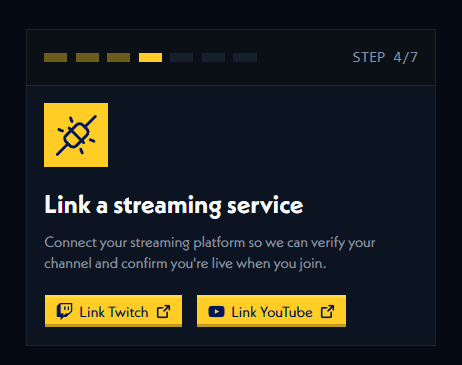
linking a duo in the setup phase

Managing already linked accounts

To reconnect a linked account, you can do this by logging in and heading to the Connected Accounts page in your account settings.

From there, you can see all your linked accounts and reconnect, disconnect, or connect new accounts.

If you disconnect your Discord account or all of your streaming service accounts and don't immediately reconnect it, you'll be asked to do this back in the setup phase to access the dashboard again.
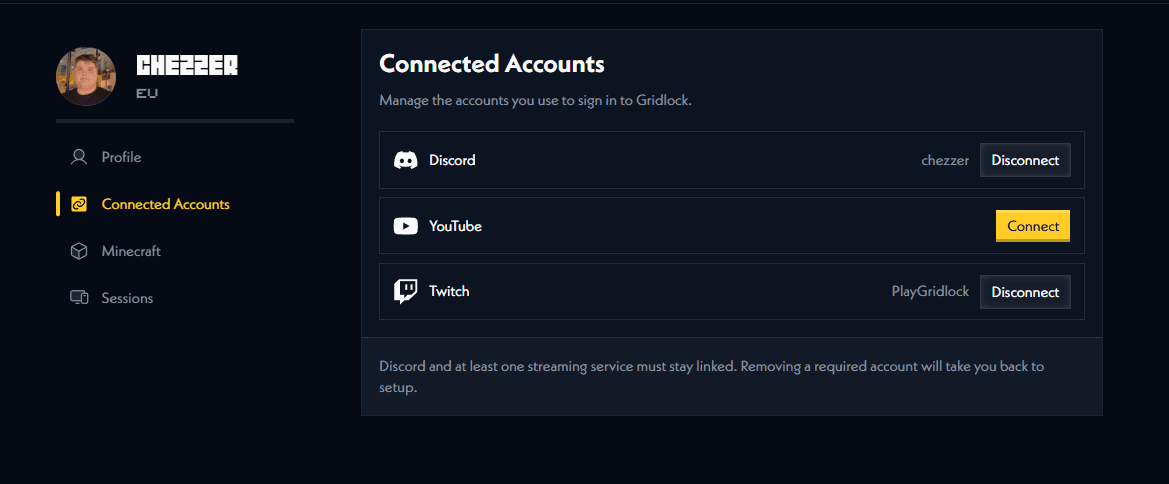
connected accounts page

Linking your Minecraft account

Connect your Minecraft account through Microsoft to join the server.

Managing your sessions

Review where you're signed in and sign out of devices you don't recognise.

On this page

Linking accountsManaging already linked accounts